
Guide 02 of 12
How to Use Instant Data Scraper in Chrome
Step-by-step guide to using the Instant Data Scraper Chrome extension: installing it, detecting tables, crawling pages with the Next button, exporting, and an online alternative.
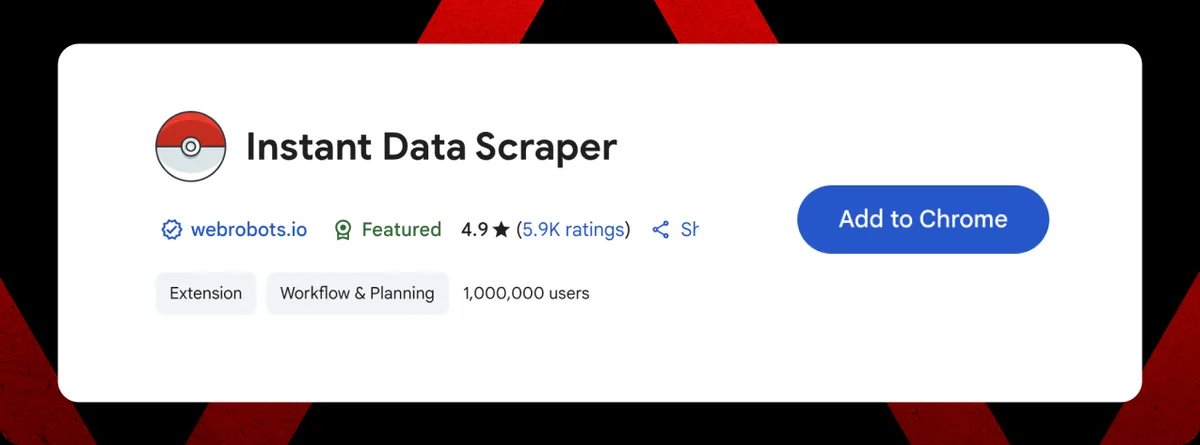
The Instant Data Scraper Chrome extension is one of the best-known no-code scraping tools. You open a page, click the extension icon, and it shows a table of the data it thinks you want. With a few more clicks you can follow "Next" buttons across many pages and download everything as CSV or Excel.
This guide walks you through the whole process: installing the extension safely, understanding its popup window, choosing the right table, crawling multiple pages, cleaning columns and exporting. We also explain when the extension is the right choice and when an online tool such as instantdatascraper.net is easier — for example on a phone, a work computer where you cannot install extensions, or when you want to share a link instead of a file.
instantdatascraper.net is an independent website and is not affiliated with the Chrome extension or its publishers. Extension labels and features can change between versions, so the exact button names in your browser may differ slightly.
Before you start
What you need
- Google Chrome or Microsoft Edge on a desktop or laptop computer (browser extensions do not run in mobile Chrome).
- Permission to install extensions — on managed work computers this may be blocked by your IT team.
- A public page with repeating data: a table, product grid, search results or directory.
Check the extension listing first
Extensions can change owners and permissions over time. Before installing any scraping extension:
- Open its listing in the Chrome Web Store and check the publisher name, the last update date and recent reviews.
- Read the permissions. Scraping extensions usually need to "read and change data on all websites" because they must read the pages you scrape.
- Read the privacy section to see whether data is collected.
Installing the extension
- Open the Chrome Web Store and search for Instant Data Scraper.
- Open the listing and click Add to Chrome.
- Review the permission prompt and confirm with Add extension.
- Click the puzzle-piece icon in the toolbar and pin the extension so its icon is always visible.
On Microsoft Edge, use the Edge Add-ons store, or allow extensions from other stores in Edge settings and install it from the Chrome Web Store.
Your first extraction
Open the right page
Navigate to the page that contains the data and wait until it has fully loaded. If the site loads more items as you scroll, scroll down once so the content is present.
Click the extension icon
A popup window opens. The extension analyses the page and highlights the area it believes is the main data block, usually with a coloured overlay on the page. The popup shows a preview table with the detected rows and columns.
Choose a different table if needed
If the preview shows the navigation menu or a sidebar instead of the products, click Try another table. The extension cycles through other repeating blocks it found. Repeat until the highlighted area matches the data you want.
Review the columns
The extension creates a column for every text field, link and image it finds inside each row. Many columns will be useful (name, price, URL) and some will be noise (icons, tracking links). You can remove unwanted columns before exporting, or delete them afterwards in Excel.
Scraping multiple pages with the Next button
Most listings are split over several pages. The extension can click through them for you.
Locate the "Next" button
- Click Locate "Next" button in the popup.
- On the web page, click the link or button that takes you to the next page (often "Next", "›" or "»").
- The extension remembers that element.
Set the delay
Before crawling, set a minimum and maximum waiting time between pages. A delay of a few seconds is kinder to the website and reduces the chance of being blocked. Increase it for slow websites.
Start crawling
Click Start crawling. The extension clicks Next, waits, adds the new rows to the table, and repeats until there is no Next button or you stop it. Keep the tab open and visible while it works.
Infinite scroll pages
Some pages have no Next button and load more items as you scroll. Depending on the version, the extension offers an infinite-scroll option that scrolls the page for you. If it does not work reliably, look for a "view all" or numbered-pages version of the listing.
Exporting your data
- Download XLSX — opens directly in Microsoft Excel, Google Sheets or LibreOffice.
- Download CSV — best for importing into other software, databases or scripts.
- Copy all — copies the table so you can paste it straight into a spreadsheet.
Read our guides on exporting to Excel and downloading CSV files for clean-up tips.
Doing the same thing online, without an extension
If you cannot install extensions, or you are on a phone or tablet, use the online tool on instantdatascraper.net:
| Task | Chrome extension | instantdatascraper.net |
|---|---|---|
| Start | Open page, click icon | Paste URL, click Start Extracting |
| Wrong block detected | Try another table | Switch dataset tabs |
| Multiple pages | Locate Next + Start crawling | Tick "Support pagination", set max pages |
| Precise fields | Limited | Custom CSS selector mode |
| Export | CSV, XLSX, copy | Excel, CSV, JSON |
| Works on mobile | No | Yes |
| Pages behind login | Sees what your browser sees | Public pages only |
Tips for better results
Clean up before you crawl
Choose the right table and remove obviously useless columns on the first page. It is much easier than cleaning thousands of rows later.
Test with two or three pages first
Stop the crawl after a few pages and check that rows are being added correctly and nothing is duplicated.
Be patient with slow sites
If rows go missing, increase the waiting time so each page fully loads before the extension reads it.
Respect the website
Don't crawl hundreds of pages in one go, avoid scraping personal data, and stop if the site shows a CAPTCHA or an access-denied page.
Working with columns in the extension
Understanding automatic column names
The extension builds column names from the HTML structure, so you may see names based on CSS classes or element paths rather than friendly labels. Look at a few rows to understand what each column contains before deleting anything.
Deleting unwanted columns
Remove columns that contain icons, empty values or tracking parameters. Fewer columns make the export easier to read and smaller to share.
Renaming after export
Column renaming is easiest in Excel or Google Sheets after you download the file: click the header cell and type a new name.
Useful settings to know
- Minimum and maximum delay — the random waiting time between page loads during a crawl. Longer is safer.
- Infinite scroll — where available, tells the extension to scroll the page instead of clicking Next.
- Stop crawling — ends the crawl but keeps rows collected so far, so you can still export them.
Privacy and security considerations
Because a browser extension runs inside your browser, it can access pages you are logged in to. That is powerful but carries responsibility:
- Do not scrape internal company systems, email inboxes or account pages unless you are explicitly authorised.
- Remove or disable extensions you no longer use.
- Review extension permissions periodically — especially after an update or ownership change.
- Prefer tools that clearly explain where data is processed and how long it is kept.
When an extension is not the right choice
- You are on a phone or tablet.
- Your company blocks extension installs.
- You want precise, named fields with CSS selectors.
- You want JSON output for a developer or an automated system.
- You want a history of previous extractions you can re-download later.
In all of these cases, the online tool is a quicker route: paste the URL, extract and download.
Real-world walkthrough: a public events calendar
Imagine a city tourism website lists 120 upcoming events, 20 per page. Here is how the session typically goes:
- Open the first events page and click the extension icon. The first guess highlights the top menu, so click Try another table twice until the event cards are highlighted.
- The preview shows columns for title, date, venue, a link and a thumbnail. Remove the thumbnail column.
- Click Locate "Next" button and click "Next ›" at the bottom of the page.
- Set the delay to 2–5 seconds and start crawling. Six pages later, the crawl stops automatically because there is no further Next link.
- Download XLSX, sort by date, and you have a complete, filterable event calendar.
The same result in the online tool: paste the URL, tick Support pagination, set maximum pages to 6, and switch to the event-card dataset tab if needed.
Summary
Install the extension carefully, open a public page, choose the right table, locate the Next button, crawl with a sensible delay and export. When you can't install extensions or need more control, the online tool gives you the same workflow from any device.
Key takeaways
- Check the extension's publisher, permissions and update history before installing.
- Use Try another table until the highlighted area matches your data.
- Locate the Next button and set a delay of several seconds before crawling.
- Export XLSX for people and CSV for other software.
- Use the online tool on mobile devices or when extensions are blocked.
Step-by-step instructions
Install and pin the extension
Add Instant Data Scraper from the Chrome Web Store after checking the publisher, update date and permissions, then pin its icon.
Open the target page
Load the public page with the data and let it finish loading.
Click the extension icon
The popup shows a preview of the detected data block.
Pick the correct table
Use Try another table until the highlighted area matches your data.
Set up pagination (optional)
Click Locate "Next" button, click the site's Next link, set a delay and press Start crawling.
Export
Download XLSX or CSV, or copy all rows into a spreadsheet.
No extension? Use the online tool
Paste the URL into the online tool for the same result on any device.
Example
Scraping a public job board with 5 result pages:
- Page 1 detected as Table 2 after one click on "Try another table" — 20 rows.
- "Next" located on the "Next ›" link, delay set to 2–4 seconds.
- Crawl finished after page 5 — 100 rows with job title, company, location, posting date and job URL.
- Exported to XLSX, duplicate rows removed in Excel with Data → Remove Duplicates.
Best practices
- Check the extension's publisher, permissions and update date before installing.
- Always test pagination on two or three pages before a long crawl.
- Use a delay of several seconds between pages.
- Stop immediately if the site shows a CAPTCHA or blocks you.
- Use the online tool when you can't install extensions or are on mobile.
Open the Instant Data Scraper tool and extract your first dataset in seconds.
Frequently asked questions
No. Chrome on Android and iOS does not support desktop extensions. Use an online tool such as instantdatascraper.net instead.
Automatic detection is a best guess. Click Try another table, or use a tool with CSS selector support for precise control.
The Next button may not be found on later pages, the page may load too slowly, or the site may have blocked the requests. Increase the delay and check the Next selector.
Check the current privacy section of the extension listing. With instantdatascraper.net, pages are fetched by our server and results are deleted automatically after the retention period.